Exploring the Calendar
Some email items, such as appointments, tasks, and notes, have dates associated with them. The Calendar enables you to view and manage these date-dependent items.
You can access the Calendar from the Folder List, or you can access it by tapping the icon in the Quick Access Bar at the bottom of the screen.
Figure 3 Calendar
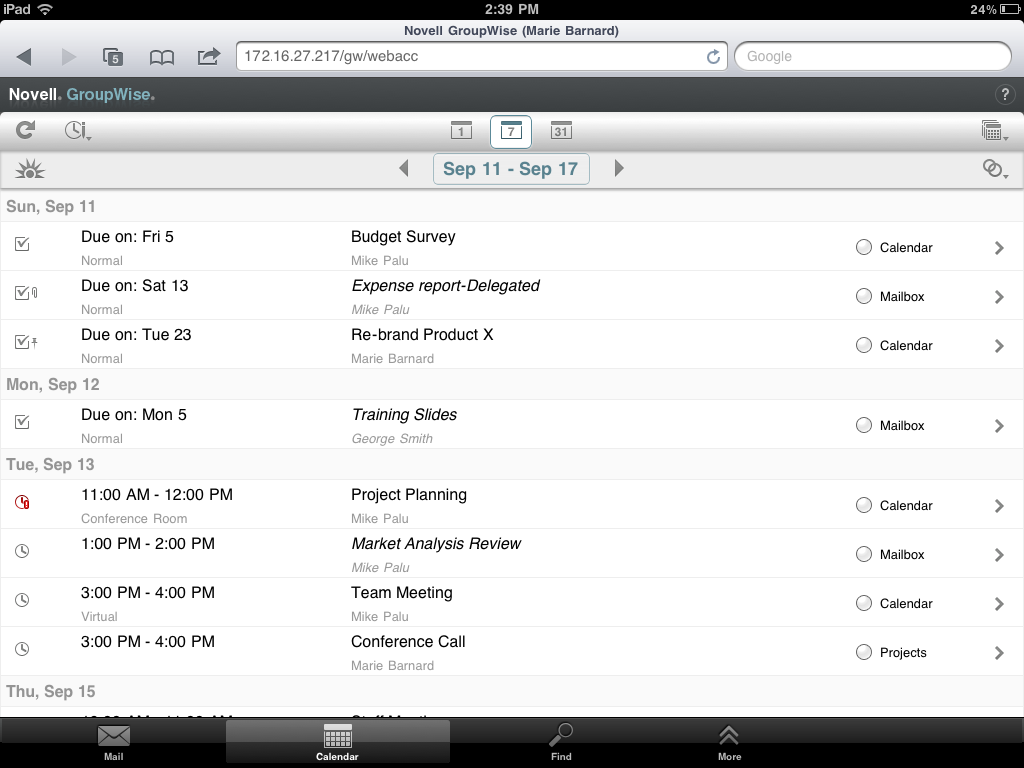
The Calendar opens to a Week view of your appointments, tasks, and notes. You can do the following to manage your Calendar:
-
Tap an item to view its contents.
-
Tap
 to refresh the Calendar items.
-
Tap
 to create a new appointment, task, or note.
-
Tap
 to select the calendars to display.
-
Tap
 to select the Calendar items (appointments, tasks, and notes) to display.
-
Tap
 to change to the Day view,
  to change to the Week view, or
  to change to the Month view.
-
Tap the two arrows
 surrounding the date period to display the previous and next periods.
-
Tap
 to reset the view to the current day.
For trademark and copyright information, see Legal Notices.
 previous
